
How to connect to a Wireless Display in Windows 11
Introduction
This guide provides step-by-step instructions on how to connect your Windows 11 laptop to a wireless display using the Ctrl-P shortcut. This feature allows you to quickly project your screen to a compatible wireless display or monitor.
Step 1: Verify Wireless Display Compatibility
Ensure your Windows 11 laptop supports Miracast and that the wireless display (e.g., a smart TV or monitor) is Miracast-compatible and powered on.
Step 2: Open the Connect Menu
Press Ctrl + P on your keyboard to open the Windows 11 "Connect" panel. This panel displays available wireless displays and audio devices.
Step 3: Search for the Wireless Display
In the "Connect" panel, Windows will automatically search for nearby wireless displays. Wait for the desired display (e.g., "Building 2 Main Boardroom") to appear in the list.
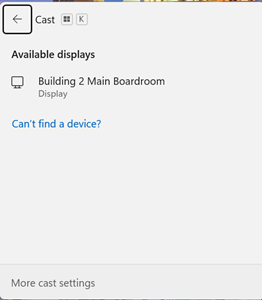
Step 4: Select and Connect to the Display
Click on the name of the wireless display you want to connect to. If prompted, enter the PIN shown on the display screen to establish the connection.
Step 5: Choose the Projection Mode
Once connected, press Win + P to open the "Project" menu. Select your preferred mode:
- PC screen only: Display only on your laptop.
- Duplicate: Show the same content on both your laptop and the wireless display.
- Extend: Use the wireless display as a second monitor.
- Second screen only: Display only on the wireless display.
Step 6: Confirm the Connection
Verify that your laptop’s screen is projected to the wireless display as expected. Adjust resolution or scaling settings in Settings > System > Display if needed.
Confirmation
Your laptop will now be displaying content onto the desired display wirelessly.
Was this article helpful?
That’s Great!
Thank you for your feedback
Sorry! We couldn't be helpful
Thank you for your feedback
Feedback sent
We appreciate your effort and will try to fix the article